Dovecot Security Update for cPanel
In the world of web hosting, Dovecot is the silent engine under the hood of your cPanel email. It handles the IMAP and POP3 protocols, making sure your emails are delivered to your inbox and synced across your devices.
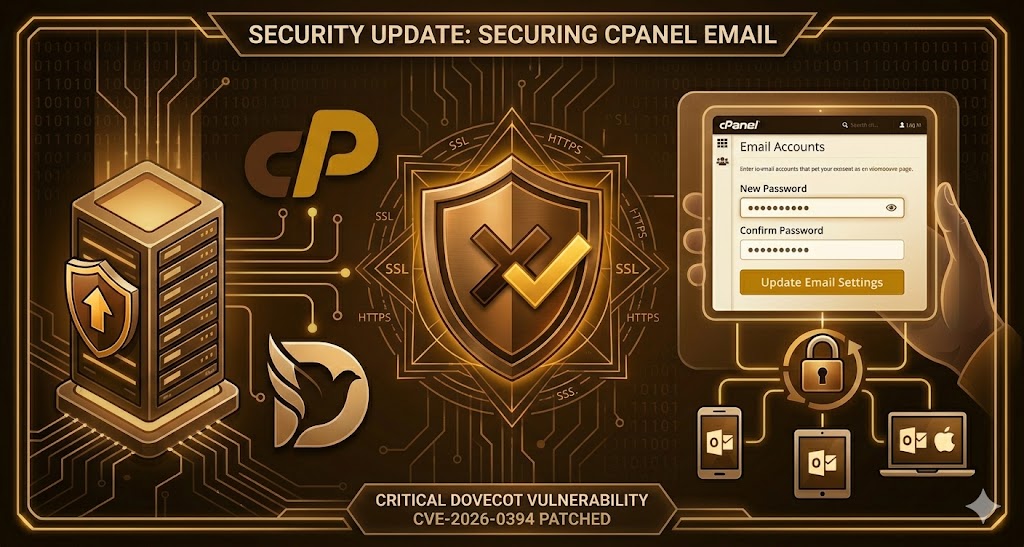
Recently, a series of critical security vulnerabilities (notably CVE-2026-0394) were identified in Dovecot. These flaws involve “path traversal” and “authentication bypass” risks, which could potentially allow an unauthorized user to trick the system into granting access to sensitive files or even bypassing login credentials entirely.
Why This Matters to You
Security updates for Dovecot aren’t just “bug fixes”—they are digital locks. Without these updates, your server could be vulnerable to:
- Information Disclosure: Attackers potentially viewing system files like
/etc/passwd. - Unauthorized Access: Hackers gaining entry to email accounts without valid credentials.
- Service Disruption: “Denial of Service” (DoS) attacks that could crash your mail server, leaving you unable to send or receive messages.
cPanel has responded by rolling out patched versions of Dovecot in their latest maintenance releases (Version 134 and above).
How to Update Your Password (and Why You Should)
Even after a system patch, security experts recommend a password refresh. If a vulnerability existed that allowed for credential probing or bypass, your current password may have been exposed. Updating it ensures that even if old data was “leaked,” it is now useless to an attacker.
Option 1: Via the cPanel Interface (Best for Account Owners)
- Log in to your cPanel account.
- Navigate to the Email section and click on Email Accounts.
- Locate the email address you want to update.
- Click the Manage button next to that account.
- In the Security section, enter a new, strong password.Tip: Use the Generate button for a high-entropy password that’s nearly impossible to guess.
- Scroll down and click Update Email Settings.
Option 2: Via Webmail (Best for Individual Users)
- Log in to your Webmail (usually
yourdomain.com/webmail). - Click on your email address in the top-right corner.
- Select Password & Security.
- Enter your new password in both the New Password and Confirm New Password fields.
- Click Save.
Pro-Tips for Post-Update Security
- Check Your Settings: In cPanel, ensure that “Allow Plaintext Authentication” is disabled. Modern security updates often default to encrypted connections only.
- Update Your Devices: Remember that once you change your password in cPanel, you must update it on your phone, tablet, and Outlook/Apple Mail clients immediately to avoid being “locked out” by multiple failed login attempts.
- Enable 2FA: If your cPanel provider allows it, enable Two-Factor Authentication for an extra layer of defense that doesn’t rely solely on a password.
Staying updated is the best defense against the ever-evolving landscape of cyber threats. If you manage your own server (VPS or Dedicated), ensure your dnf/yum or apt updates are running regularly to catch these Dovecot patches the moment they are released.